



Friday
EYFS
Shape, Space & Measures
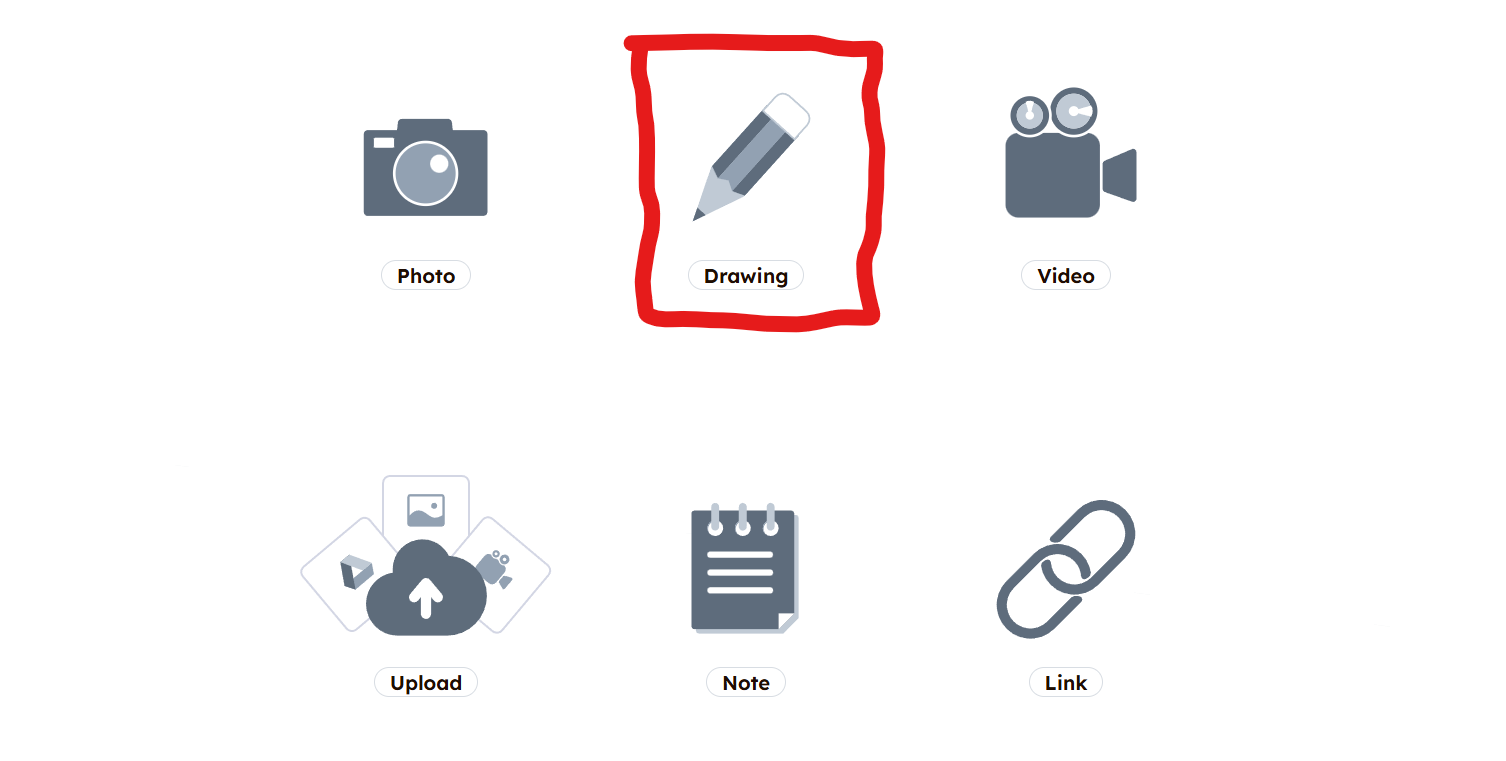
Draw a shape on Seesaw
Tap +

→ Drawing
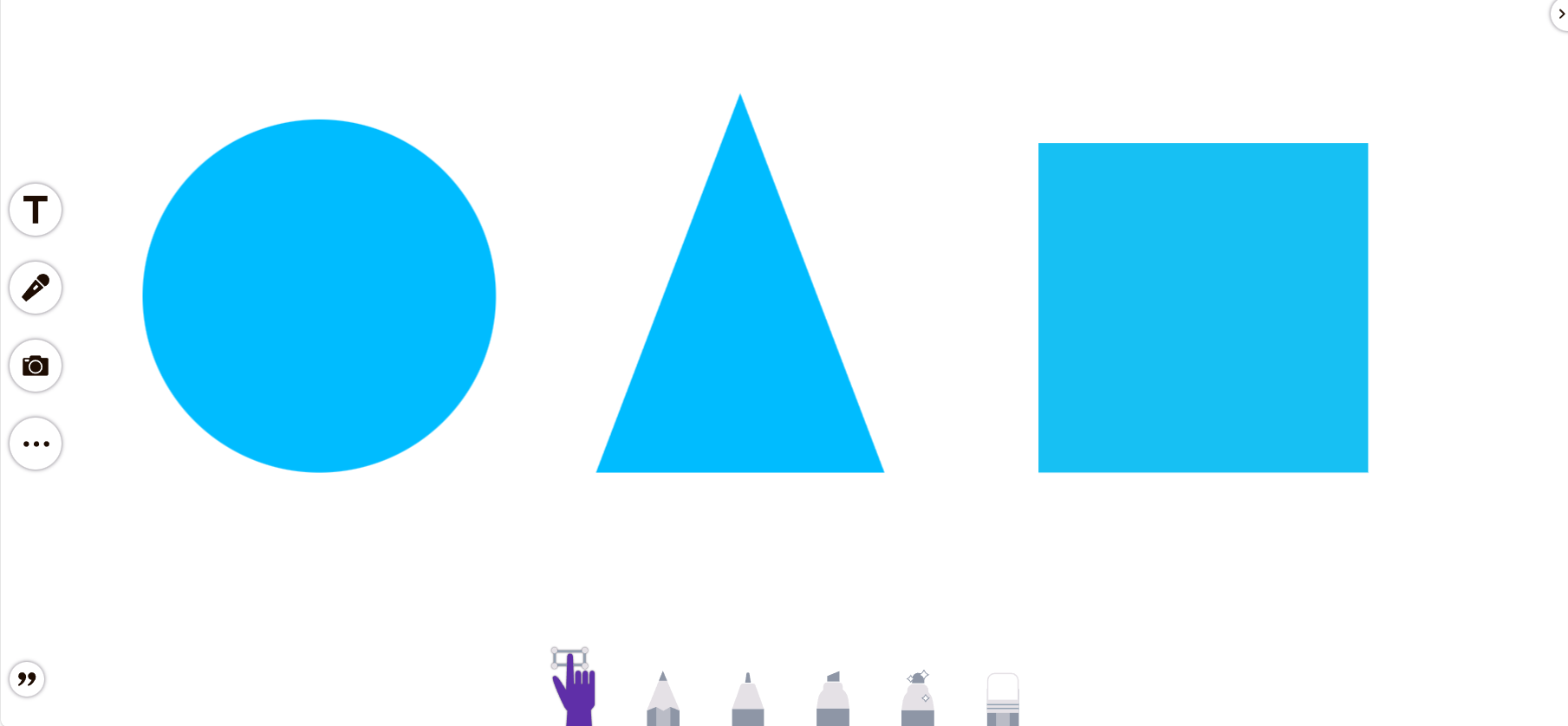
Draw a circle / square / triangle
Choose a colour
Year 6
Create a quiz
You are going to design and build an interactive quiz game using Pyonkee.
Your game should:
Ask questions
Let the player choose answers
Keep score
Tell the player if they are right or wrong
🟢 Step 1: Open Pyonkee
-
Open Pyonkee
-
Click Create New Project
-
Click the green flag to check nothing is running
🎭 Step 2: Choose your sprites
-
Choose a quiz host sprite
-
Add 3 button sprites
-
Rename them:
-
Answer A
-
Answer B
-
Answer C
-
-
Add a Play button sprite
🎨 Step 3: Create your backgrounds
-
Add a Start screen backdrop
-
Add a backdrop for each question
-
Add an End screen backdrop
🔢 Step 4: Make your variables
-
Click Variables
-
Click Make a variable
-
Create:
-
score -
question number
-
🚦 Step 5: Code the Play button
On the Play button sprite:
-
when this sprite clicked -
Set
score to 0 -
Set
question number to 1 -
Switch to the Question 1 background
-
Broadcast
question 1
❓ Step 6: Ask the question
On the quiz host sprite:
-
when I receive question 1 -
Make the sprite say the question
-
Show the answer buttons
🅰️ Step 7: Code the answer buttons
On each answer button sprite:
-
when this sprite clicked -
Use if / else
-
If correct → change
score by 1 -
Else → say “Incorrect”
-
-
Broadcast
next question
🔁 Step 8: Next questions
-
Increase
question number -
Switch to the next backdrop
-
Broadcast
question 2, thenquestion 3
🏁 Step 9: End screen
-
Switch to the End screen
-
Hide answer buttons
-
Say:
“Your final score is…”
🐞 Step 10: Test and debug
-
Click the green flag
-
Play your game
-
Fix anything that doesn’t work
✅ Success checklist
☐ Game starts with Play button
☐ Score works properly
☐ Uses if / else
☐ Game ends with a final score